
Personal Sales Call: 1.800.221.4408,  Business Sales Call: 1.866.326.7549

Switch to Verizon today! One plan. One price. Pure Simplicity. |  Switch Now  | i

$30/month for each line; after auto pay and Switcher Discount. Plus taxes and fees. Max 12 lines. $10/mo Auto Pay (ACH or Verizon Visa Card) & paper-free billing discount requires enrollment w/in 30 days. $15/mo Switcher discount requires smartphone line port-in or an uploaded mobile bill from an eligible carrier dated w/in the past 45 days. Unlimited 4G, 5G and 5G Ultra Wideband data is restricted to on-device smartphone usage. 5G access requires 5G capable device. Domestic data roaming at 2G speeds.

How to Use Mobile Hotspot on Your Verizon Phone

How to Use Mobile Hotspot on Your Verizon Phone

July 20, 2022 5:26 pm

Unlike smartphones, devices like laptops aren’t able to connect to the internet without a Wi-Fi signal. But rather than risk using an unsecured network while you’re on the go, you can generate your own secure Wi-Fi by turning your phone into a mobile hotspot.

Every smartphone and basic phone from Verizon comes preinstalled with a mobile hotspot feature. Different devices use different names for this, such as:

  • Personal Hotspot (iOS)
  • Internet Sharing (Windows)
  • Portable Wi-Fi Hotspot (Google Nexus devices)

Your mobile hotspot lets you share your network connection with up to 10 devices, which use your phone’s data plan to access the internet. This feature is available anywhere that has 4G LTE service, or anywhere in the US with 5G Ultra Wideband or 5G Nationwide. Your mobile hotspot even includes password protection to prevent strangers from joining your network and accessing your information.

How to use your mobile hotspot

  1. Go to Settings or Manage Connections, and activate Verizon Wireless Mobile Hotspot.
  2. Open the App Tray and click Mobile Hotspot.
  3. Turn it on and an icon will appear in your notifications panel showing that your hotspot is available for connection.
  4. On your other device, scan for available Wi-Fi networks and click the name of your hotspot. You’ll need to enter your cell phone’s hotspot password. To find this:
  • Go to Settings.
  • Click Wireless & Networks.
  • Click Tethering & Portable Hotspot.
  • Check the Show Password box to see your password.
  1. Enter the password, then click Join or Connect to start browsing the internet.

Mobile hotspot not working? Here’s how to fix it

  1. Open Verizon’s Device Troubleshooting Assistant.
  2. Click on your device.
  3. Sign in with your My Verizon username and password for a personalized solution, or simply click Continue.
  4. Hover over Data Internet and Connectivity.
  5. Click the issue you need help with.
  6. Follow the on-screen instructions to fix your mobile hotspot issue.

Share unlimited data with a Verizon Unlimited Plan

When you turn your cell phone into a hotspot, any device that connects to it uses your data to access the internet. If you use the feature often, or if you connect a lot of devices, it’s easy to accidentally run out of data.

But if you have a Verizon Unlimited Plan, you can use as much data as you want without ever running out or paying extra. That means you never need to worry about using your cell phone as a mobile hotspot.

Best Verizon Unlimited Plans
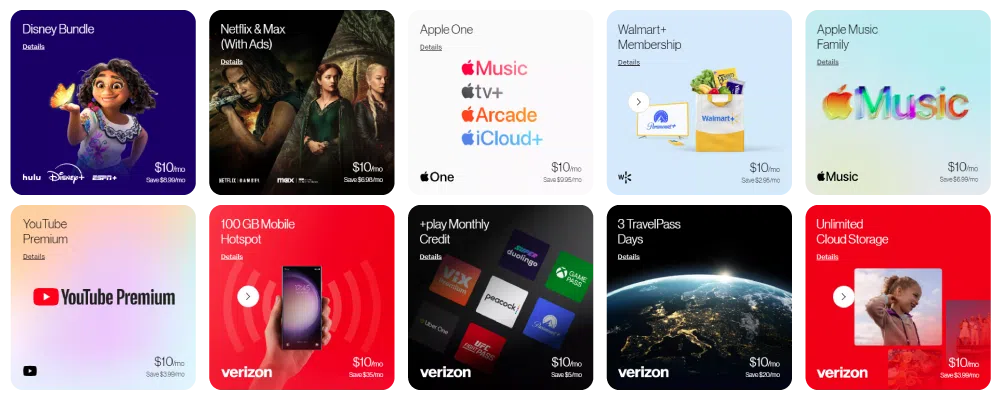
Disney Bundle, Neflix & Max, Apple One, Walmart+, Apple Music Family, Youtube Premium, 100GB Hotspot, +play, 3 TravelPass Days, Unlimited Cloud Storage all for $10/mon to save you various amounts.

  • 5G Get More: 50GB premium mobile hotspot data, then unlimited lower-speed data
  • 5G Do More, and 5G Play More: 25GB premium mobile hotspot data, then unlimited lower-speed data

How to use your mobile hotspot without data

You’ll have the fastest and most stable mobile hotspot experience by using your data for an internet connection. But in a pinch, it’s possible to use your mobile hotspot without data through the Wi-Fi tethering feature.

Wi-Fi tethering lets your device behave as an internet router. Some devices need a physical connection through a USB cable, but most can simply use Bluetooth or Wi-Fi.

Android

1) Go to Settings.

2) Click WiFi & Internet.

3) If you can’t see an option for Wi-Fi tethering, click More.

4) Turn on Tethering.

iOS

1) Go to Settings.

2) Click Personal Hotspot. (For some iOS devices, you might need to click General, then Network, then Personal Hotspot.)

3) Turn on Personal Hotspot.

Visit us in-store to find the perfect phone and plan

When you’re ready to upgrade your phone or data plan, our friendly and knowledgeable staff will help you find the perfect match for your usage needs and habits. They’ll even show you how to use the mobile hotspot and Wi-Fi tethering features on your new phone, so you can quickly set up a connection.

Find your local Russell Cellular store online, and drop in to see us today.
 

RC Cares – Standing Strong Together

RC Cares – Standing Strong Together

Russell Cellular Store Manager Ashley Surratt has spent the past few years facing a cancer journey marked by unexpected turns. Through it all, she has continued showing up for her family, her...

Contact Button
Contact Us

The Benefits of Working
for Russell Cellular

At Russell Cellular, we believe great careers are built where people feel supported, challenged, and genuinely valued. Whether you’re serving customers in one of our sales locations across the country or contributing your expertise at our Home Office, you’ll be part of a culture rooted in respect, teamwork, and growth. Our employees enjoy benefits, ongoing training, and clear pathways for advancement because we’re committed to helping you build a future, not just finding a job.

As a Verizon Authorized Retailer, we offer the stability of a nationwide organization with the personal feel of a family-owned company. We celebrate wins, recognize hard work, and empower our teams with the tools and technology they need to succeed. From leadership development programs to community involvement opportunities, we invest in your potential and encourage you to make an impact every day.

Join Russell Cellular and discover a workplace where your ideas matter, your growth is supported, and your success is celebrated.

Employee Assistance Program

Starting day one of employment at Russell Cellular, our employees and their immediate family members are offered free counseling services and more.

Through the Anthem Employee Assistance program, employees are offered four counseling options: In person, over the phone, and two virtual options. The two virtual options are Talkspace and Live Health. Employees can receive up to 3 free visits per issue.

Talkspace's network includes thousands of licensed, insured, and verified therapists who can treat a variety of needs.

Offering a unique member experience

  • Personalized matching
  • Convenient access
  • Ease of Communication
  • Self-guided exercises

Live Health offers expert, compassionate, and confidential care. Some care options include medical, psychiatry, and allergies.

Employee Assistance Program

Employee Emergency Fund

The purpose of the Employee Emergency Fund is to support valued team members when emergency situations arise beyond their control causing unexpected financial hardships.

Donations are made by employees for anyone to use. When you donate to the EEF, you are investing in your RC Family and helping to provide much needed assistance in their time of need. When you commit to donating to the EEF each pay period, you are making a difference in our family.

All full-time employees are eligible after 90 days of employment.

  • Qualifying circumstances include natural disaster, funeral costs, fire loss, acute medical illness and more.
  • The EEF provides financial assistance for you and your immediate family.
  • Qualifying Team Members can receive up to $500 per occurrence.
RC Mark Logo Small
Privacy Overview

For an enhanced experience, advertising and other purposes, we and selected third parties use certain technologies (like cookies, pixels and scripts) to collect and share information about your use of our site. Cookie information is stored in your browser and performs functions such as recognizing you when you return to our website and helping our team to understand which sections of the website you find most interesting and useful. You agree to the use of these technologies by using our site. You can view and choose to enable the first time visiting our site and you can update and make changes at any time in the Cookie settings menu. This Privacy Notice for Russell Cellular Inc (“we,” “us,” or “our“), describes how and why we might access, collect, store, use, and/or share (“process“) your personal information when you use our services (“Services“), including when you:

1.) Visit our website at https://www.russellcellular.com or any website of ours that links to this Privacy Notice.

2.) Engage with us in other related ways, including any marketing or events.

Questions or concerns? Reading this Privacy Notice will help you understand your privacy rights and choices. We are responsible for making decisions about how your personal information is processed. If you do not agree with our policies and practices, please do not use our Services. If you still have any questions or concerns, please contact us at [email protected].

Learn more in our Privacy Policy, or Cookie Policy.