
Personal Sales Call: 1.800.221.4408,  Business Sales Call: 1.866.326.7549

Switch to Verizon today! One plan. One price. Pure Simplicity. |  Switch Now  | i

$30/month for each line; after auto pay and Switcher Discount. Plus taxes and fees. Max 12 lines. $10/mo Auto Pay (ACH or Verizon Visa Card) & paper-free billing discount requires enrollment w/in 30 days. $15/mo Switcher discount requires smartphone line port-in or an uploaded mobile bill from an eligible carrier dated w/in the past 45 days. Unlimited 4G, 5G and 5G Ultra Wideband data is restricted to on-device smartphone usage. 5G access requires 5G capable device. Domestic data roaming at 2G speeds.

How to Set a Camera Timer on Newer Model Smartphones

October 6, 2026 8:38 am

Or, How to Be Included in Group Photos Without Taking a Selfie

With the holidays approaching, special gatherings of friends and family are memories to be made and preserved, moments captured that will be treasured long after by all involved. Without having to gang up for an awkward and iffy selfie, wouldn’t it be great to stage a “regular” group photo that everyone could be in, including the photographer?

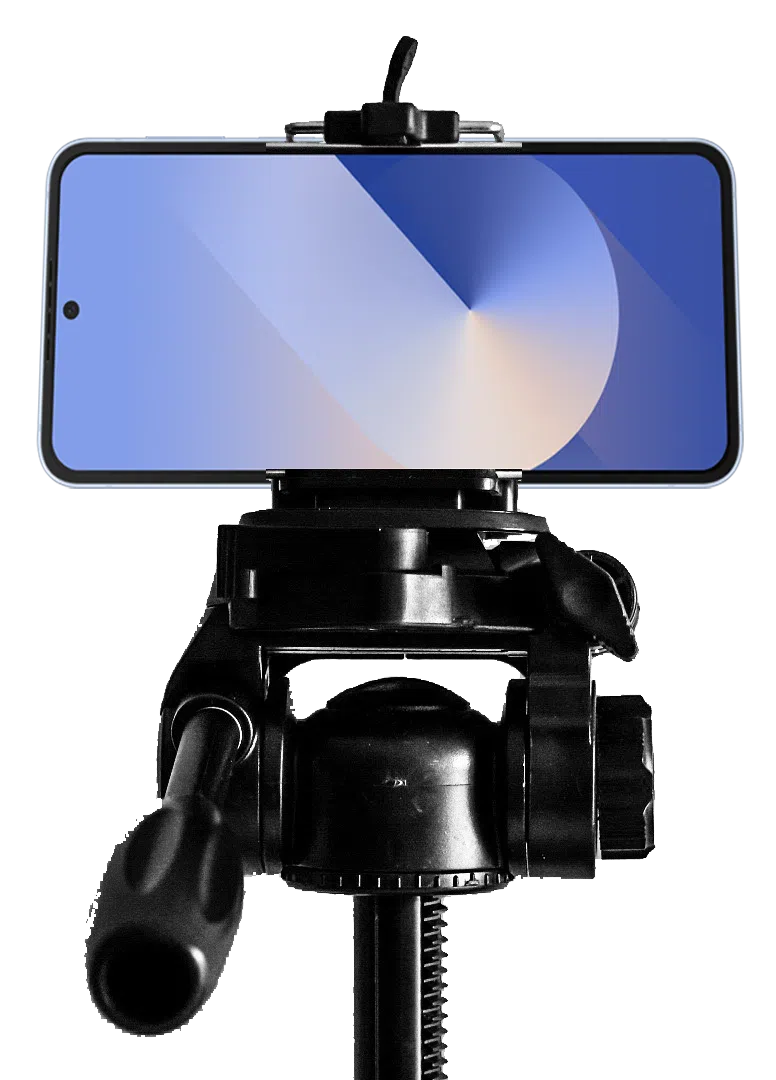
We have (and verily, have long had) the technology in place – all that’s needed is an adjustable but stable platform (more on this later), a smartphone, and YOU knowing how to set the camera timer!

tech tips setting camera timer - smartphone with tripod grip blog october 2026Assuming you’re sporting a capable modern smartphone, you’re already 1/3 there. Read on to reach 2/3 and become the “high-tech” hero this holiday season.

Note: If you’re currently suffering upgrade envy, paying too much, or having tech issues, give the friendly experts at Russell Cellular a jingle at 1-800-221-4408 or visit one at your nearest location immediately!

Your Camera Carries Its Own Tools

In newer smartphones, you can access the countdown tools directly from the top or bottom toolbar within each phone’s native camera app. Below is a direct comparison of the available timer intervals, followed by the step-by-step instructions for each system.

Quick Feature Comparison

Phone Model Available Intervals Visual Location
iPhone 14
& newer
3 seconds, 10 seconds Under the hidden slider menu (Arrow button)
Galaxy S23
& newer
2 seconds, 5 seconds, 10 seconds Top toolbar menu (Clock icon)

For iPhone 14 & newer (iOS 16+) – 5 Steps to Setting the Camera Timer

The timer on newer iPhones is located inside a slide-out adjustment menu to prevent the viewfinder from looking cluttered. For more detailed instructions on native tools, check the official Apple Support iPhone Camera Guide.

  1. Open the Camera app and ensure you are in Photo or Portrait mode. 

  2. Tap the Chevron Arrow (∧) at the very top center of your screen (or swipe up from the middle of the viewfinder) to pull up the tool shelf. 

  3. Tap the Timer icon (looks like a classic clock) from the row of options that appears right above the shutter button. 

  4. Select either 3s or 10s. 

  5. Tap the Shutter button. The flash will blink, and a countdown timer will display on your screen before the camera captures a burst of 10 photos. 

Note: To turn it off, follow the same steps and select Off.

deskstand for smartphone - camera timer setting blog october 2026

For Galaxy S23 & newer (One UI 5.1+) – 4 Steps to Setting the Camera Timer

Samsung places the timer tool directly on the primary quick-settings bar at the top of the camera interface. For alternative capturing methods, view the Samsung Support Camera Settings Guide.

  1. Open the Camera app and make sure you are in Photo or Portrait mode.

  2. Look at the toolbar at the top of your screen and tap the Timer icon (an open circle clock outline).

  3. Select your preferred delay interval: 2s, 5s, or 10s. The icon will change to reflect the number of seconds you selecsmartphone on camera tripod - blog how to set timer - october 2026ted.

  4. Tap the Shutter button. A circular countdown graphic will appear on your screen, accompanied by an audible beep before the photo is taken. 

Tip: You can also go to Camera Settings > Shooting methods and turn on Palm swipe to trigger the timer just by holding up your hand to the camera.

Last (1st really) But Not Least – an Adjustable but Stable Platform for Your Phone

PRO TIP: Select and order/buy your photo stand immediately or ASAP – long before you think you’ll need it. Pat yourself on the back when complete. Practice your new skills upon delivery!

You can find great smartphone photo stands ranging from pocket-sized magnetic grips to tall, adjustable tripods depending on your shooting needs, starting around $10-20 at most major retailers and online outlets.

This author is biased and just can’t be bothered writing about selfie sticks, except to mention that some models do, in fact, conveniently double as desktop stands and come with remote controls, so manual timer-setting becomes irrelevant. That, admittedly, is pretty cool too.

Care to know other fascinating and easy to use features of your smartphone? Call a professional at Russell Cellular at 1-800-221-4408 or visit one at your nearest location. Note: more simple Smartphone Tech Tips are coming soon to the RC blog.

For the record, yes, we do know – smartphone cameras have moved far beyond this basic, near universal feature, but RC issues no apologies for covering the fundamentals first. Stay tuned for more!

#RussellCellular #TeamRC #TechTips #SmartphonePhotography #InclusiveGroupShots #CameraControls #WirelessLifestyle


The Myth of Being Fully Staffed

The Myth of Being Fully Staffed

Staffing is bigger than just hiring the “right people". Not long ago, staffing was under a microscope. Starting around March-April 2020, a global event turned the workplace upside down - COVID....

Leading through Giving with RC Cares

Leading through Giving with RC Cares

Russell Cellular Area Vice President of Sales Anthony Badalamenti knows the impact of charitable causes firsthand. When Hurricane Sandy struck his New Jersey community in 2012, he witnessed how the...

Contact Button
Contact Us

The Benefits of Working
for Russell Cellular

At Russell Cellular, we believe great careers are built where people feel supported, challenged, and genuinely valued. Whether you’re serving customers in one of our sales locations across the country or contributing your expertise at our Home Office, you’ll be part of a culture rooted in respect, teamwork, and growth. Our employees enjoy benefits, ongoing training, and clear pathways for advancement because we’re committed to helping you build a future, not just finding a job.

As a Verizon Authorized Retailer, we offer the stability of a nationwide organization with the personal feel of a family-owned company. We celebrate wins, recognize hard work, and empower our teams with the tools and technology they need to succeed. From leadership development programs to community involvement opportunities, we invest in your potential and encourage you to make an impact every day.

Join Russell Cellular and discover a workplace where your ideas matter, your growth is supported, and your success is celebrated.

Employee Assistance Program

Starting day one of employment at Russell Cellular, our employees and their immediate family members are offered free counseling services and more.

Through the Anthem Employee Assistance program, employees are offered four counseling options: In person, over the phone, and two virtual options. The two virtual options are Talkspace and Live Health. Employees can receive up to 3 free visits per issue.

Talkspace's network includes thousands of licensed, insured, and verified therapists who can treat a variety of needs.

Offering a unique member experience

  • Personalized matching
  • Convenient access
  • Ease of Communication
  • Self-guided exercises

Live Health offers expert, compassionate, and confidential care. Some care options include medical, psychiatry, and allergies.

Employee Assistance Program

Employee Emergency Fund

The purpose of the Employee Emergency Fund is to support valued team members when emergency situations arise beyond their control causing unexpected financial hardships.

Donations are made by employees for anyone to use. When you donate to the EEF, you are investing in your RC Family and helping to provide much needed assistance in their time of need. When you commit to donating to the EEF each pay period, you are making a difference in our family.

All full-time employees are eligible after 90 days of employment.

  • Qualifying circumstances include natural disaster, funeral costs, fire loss, acute medical illness and more.
  • The EEF provides financial assistance for you and your immediate family.
  • Qualifying Team Members can receive up to $500 per occurrence.
RC Mark Logo Small
Privacy Overview

For an enhanced experience, advertising and other purposes, we and selected third parties use certain technologies (like cookies, pixels and scripts) to collect and share information about your use of our site. Cookie information is stored in your browser and performs functions such as recognizing you when you return to our website and helping our team to understand which sections of the website you find most interesting and useful. You agree to the use of these technologies by using our site. You can view and choose to enable the first time visiting our site and you can update and make changes at any time in the Cookie settings menu. This Privacy Notice for Russell Cellular Inc (“we,” “us,” or “our“), describes how and why we might access, collect, store, use, and/or share (“process“) your personal information when you use our services (“Services“), including when you:

1.) Visit our website at https://www.russellcellular.com or any website of ours that links to this Privacy Notice.

2.) Engage with us in other related ways, including any marketing or events.

Questions or concerns? Reading this Privacy Notice will help you understand your privacy rights and choices. We are responsible for making decisions about how your personal information is processed. If you do not agree with our policies and practices, please do not use our Services. If you still have any questions or concerns, please contact us at [email protected].

Learn more in our Privacy Policy, or Cookie Policy.