
Dec 3, 2024
“Life can only be understood backwards, but it must be lived forwards”
Soren Kierkegaard was definitely onto something when he shared this idea. While you and I reflect on what’s happened and what has been, we bring that understanding and what we’ve learned into our next steps. In a way, we reflect backward to project forward.
At this time of year, one cannot help but reflect. With all the stuff that’s made up our day-to-day work life and home life outcomes, we naturally end up reviewing all that’s happened throughout the year. We contemplate the impact and influence it has had in us, through us and around us.
Then comes a change of perspective.

Imagine looking behind. And then, to re-orient our gaze, we turn our head towards what lies ahead. In the turn, it’s there, right dab in the middle, where we find a precious space. It’s what Viktor Frankl identified long ago,
“Between stimulus and response lies a space. In that space lie our freedom and power to choose a response. In our response lies our growth and our happiness.”
This represents a pause between what has been and what may be. We leverage our outcomes to temper our future choices.
This means stepping out of an old year into a new and uncertain one with faith and hope. Which can be hard for many of us to do. It’s challenging because we don’t know what lies ahead, and it’s difficult to fully realize because what got us to this point may not get us to the next one. I am reminded of a pivotal quote by leadership guru Marshall Goldsmith.
“What got you here won’t get you there”

It’s acknowledging the behaviors, strategies, or habits that led to the outcomes in our past may not be sufficient to the thinking and doing for our future. Essentially, we will need to adapt and evolve as we step into the possibilities of our new year.
This may very well involve the process of ‘start, stop or continue’. For me, I’ve always done my very best to ‘abandon all hope for a better yesterday’, and acknowledge, accept, and then let go. I stay fully aware in that pause after reflecting to recognize that all the successes, failures, wins and losses…they’re historical. They’re in the past. The only thing with distinct clarity in this moment is the two inches right in front of me. Clarity is found in the middle of reflecting and projecting. I am here. Now what?
What, Why, How, To What Extent
Here’s the thing, we cannot just move forward because it sounds good. We need to avoid some blind statement like Do Better or Follow my Passion. It should be “Follow my passion…” and then add to it the specific aspect or aspects as to what that means, how it will be seen and give it some tangible measure. All too often, when we make decisions in the new year, we say something without rigorously defining it. We have to be honest with ourselves and avoid empty promises and platitudes.
We have to know WHAT we’re striving for, WHY that, HOW to make it happen, and TO WHAT EXTENT we will execute it and live it…each and every day. One must own the true understanding, by both believing and committing that this will impact ourselves and those around us. I know plenty of people who say it, and don’t live it or follow through with it. That has been me in past seasons.
Now layer this with what Tony Robbins says…set goals, not resolutions. And then create a plan and act. In fact, it’s not the goal we’re going after as much as it is becoming the person who can accomplish the goal. This creates a posture of grace to live it out, with the flexibility in being real and doing this the best way we can. Perfectly imperfect. Our mission and vision within the goal doesn’t change. The way and means to achieve it, can and will change. And that is OK.
Bottom line, now is the perfect time to reflect backwards to project forwards. We end well so that we may begin well; moving forward, unburdened by what has been.
I challenge you with the following questions as you reflect backwards to project forwards.

- Can you describe what happened… what did I achieved?
- What did I notice…what did I learn?
- Where did you encounter challenges… what held me back?
- Which habit defines me…what habit requiring change will help me the most?
- How will I respond…what is my focus as I move forward?
Want to learn more perspectives about Reflection? Visit our podcast or visit one of our locations.

Nov 18, 2024
Opportunity does not waste time with those who are unprepared
“We have so much to rush for, so many things to fix and problems to solve, with all of that happening I’m trying to remind myself of self-care every day…” – Jonathan Van Ness
The idiom of “The calm before the storm” represents the quiet time or lull before a period of great activity or trouble. It is a time when one prepares for what is to come.
October may very well represent a veritable calm before line-ups, inventory flux, and staffing headaches combined with traffic, transactions, and tedious hours. Not to mention the polarity of grumpy customers (and team members) with all of their holiday cheer in tow.
It typically becomes a month of preparing efficiencies. The challenge can arise from multiple reasons, not just one. It represents an ideal time to pre-check or pulse-check oneself, the team, and the business for the potentially crazy times that lie ahead.
The thing is, inevitability comes into play when there is a reality shift. Preparedness gets tested—not just the structure, responsibilities, and behaviors but also the mindset. We experience the whirlwind.
Self-Care: The calm before quickly becomes the calm during

Fourth quarter challenges each of us. In almost every way possible, we will see our mettle from a hectic time’s perspective. It also defines the limits one will be willing to accomplish any and all things that need to get done. Each of us during this time will be stretched and formed by all the possible things that could happen, might happen, and will happen. There is absolutely no one-size fits all formula to navigate the tumultuous time from the days leading up to Black Friday and beyond.
If we had to identify the things that must be done without fail and those things that must be done to drive the business within the whirlwind of holiday craziness, what would they be? Here is a tip…pick up a handful of gravel and throw it all up in the air. Then, decide which rocks need to be caught.
Self-Care: Keep calm and carry on
This phrase originated as a motivational poster produced by the Government of the United Kingdom in 1939 in preparation for World War II. The poster was intended to raise the morale of the British public. In our current scene, it now enjoys general currency as an expression of resilience. And that is an exceptionally critical characteristic during Q4 in retail and living out the whirlwind of holiday selling.
We can be in the midst of a storm; the storm does not have to be in midst of us.
Hurricanes are very real example of a storm. A true whirlwind. Did you know that even in the middle of a hurricane, the bottom of the sea is calm? As the storm rages and the winds howl, the deep waters beneath sway in gentle rhythm. Below there is no storm. It’s calm beneath the waves. How do we emulate that calm within?
If I had one bit of advice, it would be self-care

Every year about this time I explore how we take care of ourselves during the holidays – a time when things can get crazy busy and overwhelming. Call it health and well-being when we’re busy being busy. Consider the following components of heart, mind, body and soul as a starting point.
Heart
What represents our outlook? Evaluate your passion and purpose. Set reasonable expectations and goals for holiday activities. Invest in establishing routines and keep things simple. Look for progress. not perfection. Remember that the whirlwind is short-term, so be patient and take things week by week, day by day, moment by moment.
Mind
Our mind is essential during this time. I will always believe the quality of my thinking determines the quality of my life. Of my circumstances and the pathway for success…and failure. Our choices direct the outcome. Control your control-ables.
Body
Let’s be real, there’s no perfect way to take of our self. We do the best we can, when we can. Maybe the best we can do is being aware that if we’re low energy or motivation, if we feel stressed, if we’re run down…we have to do something to take care of our body. Pay attention to eating, sleeping, exercising, and rely on our source for resting and replenishment.
Soul
Starve our ego. Feed our soul. How can we ensure we are feeding our soul? Believing in and paying attention to what really matters like doing the next right thing in the service of others. Maybe the best and most significant way is about our belief. To believe in our self and take care of our self.
Each of these traditionally represent a way of understanding ourselves as a whole person. Each interconnecting – the emotional, mental, physical, and spiritual components not only influencing our actions as one offs, but also creating a broader consideration when they all become a collective mass of consideration during a whirlwind.
I bring all of this up because we are coming into a time when speed, volume, frequency, and unexpectedness will be elements of our reality. It will be the varying degrees of the whirlwind encountered during the intense phrenetic busyness of both the holidays and Q4 retail selling season that will test our calm during the storm. Go deep and find your rhythm.
I challenge you with the following questions to consider how you embrace self-care in the whirlwind.
- Define self-care?
- What are you prepared to do to balance your heart, mind, body and soul?
- How are you orienting your heart, mind, body, and soul?
- Give an example of what you can do to take care of your heart, mind, body and soul?
- In what ways do you understand your heart, mind, body and soul?
- Are you squared away…emotionally, mentally, physically and spiritually for what lies ahead and what lies within?
Want to learn more perspectives about Self-Care? Visit our podcast or visit one of our locations.

Oct 1, 2024
Opportunity does not waste time with those who are unprepared
That statement from Idowu Koyenikan, organizational consultant and author of Wealth for All: Living a Life of Success at the Edge of Your Ability, it challenges me. It is challenging because I believe every new day presents a new opportunity. I also believe that there is opportunity in all adversity and every hardship. Therefore, if I am to believe what I believe, it suggests that I must be prepared for the unknown, like what lies within a new day, adversity, and hardship.
Is that what Koyenikan is suggesting?
I contend, not completely. Opportunity lies in wait, ready to be captured by those who acknowledge it by wholeheartedly and intentionally stepping into it. It’s not the opportunity that wastes time with unpreparedness; we do.
“Talent alone won’t make you a success. Neither will being in the right place at the right time, unless you are ready. The most important question is: ‘Are you ready?” – Johnny Carson
I say all of this to set up what lies ahead. We are coming into one of the busiest times of the year in retail – fourth quarter selling. For most organizations, this period of time represents the biggest chunk of the business they will do in their year. Not only is it a profitable time of year, it is a highly chaotic time of year. The organizations that thrive during this time of year, spend time, energy, effort, and even enthusiasm in preparing for the whirlwind. They plan for the disruption.
What is at the heart of preparation?

To paraphrase and adapt a George Washington quote about the preparation for war, “A robust preparation of war influences lasting peace.” As hard as that might sound, preparation builds for the future. It cultivates potential opportunities in all possibilities before they come to pass.
One might surmise, we prepare for our success. We prepare for the best outcome. More than that, I think, we get really good when we prepare for the failures. When we prepare for the mishaps, disruptions, obstacles and doubts, we expand our mindset and skillset. It may very be in the hypotheticals and ‘what if’s’, we build our capacity to successfully deal with and work through chaos.
Yes, it is difficult to know the unknown, unexpected and uncertain. Yes, things we decide ahead of time represent only potential contingencies that we won’t really know till we face what we are given. It’s a posture whereby preparation does help to orient our processes and our choices.
What’s the plan?

The central call to action is what I mentioned in my first book, What If; The Improvisational Guide To Management, get proactive to be reactive. Said another way, we map out all the things that make up this time of year – all elements of what do and how we do it – and we put as much as we can into place so that we are better at response. This is about adaptation and flexibility in all of our efforts to react accordingly to the circumstances that we are given.
This can be about preparing our systems. Maybe, producing checklists and escalation trees to handle a variety of actions required and the ubiquitous “if this, then this and what to do when.” It can be getting a handle on staffing and hours, setting clear expectations, defining specific standards and operational efficiencies, identifying real-time, on-the-fly coaching best practices, or ensuring people have what they need to do their best. It is not about planning to be perfect. It’s preparing to make progress, no matter what.
Prepare to fail or failed to prepare, pick a side, it’s that time of year again.
I challenge you with the following questions to consider how you see “preparation”.
- How do you define preparation?
- What’s the purpose of what you do? What’s the motive?
- What’s the current scene and what do you need?
- What do the people around you need and how can you provide that support?
- What has traditionally tripped you up and what are some of the potential tripping points?
- How do you deal with stress and anxiety in the whirlwind?
Want to learn more perspectives about opportunity and preparation? Visit our podcast or visit one of our locations.

Sep 3, 2024
“The best way to find yourself is to lose yourself in the service of others.” – Mahatma Gandhi
We find what we need in the service of others

Ever felt out of sorts and lost in what to do next? Maybe you’re stressed, overwhelmed, anxious, and unsure about the next right thing. Perhaps you’re feeling stuck in the past regarding what was and wasn’t done or should or shouldn’t have happened. You’re in fear of moving forward because the uncertainty seems to involve a significant risk. Additionally, while you’re in some adversity and hardship, you’re remembering the time or two you fell short.
The Power of Serving Others
Given these challenges, my advice to leaders, team members, mentees, cohorts, and friends, when they are in the midst of any of these mental, physical, emotional, or spiritual perspectives, is to use this default behavior…serve and help someone else. Doing so for nothing in return, and for no other reason than a genuine desire to put someone else’s needs ahead of your own, to simply serve others. Nothing will ever be guaranteed, except maybe taking the focus off ourselves and placing it on someone else. A self-less posture where we get what we give away. In fact, I love what Gandhi said, “The best way to find yourself is to lose yourself in the service of others.”
Self-Centeredness vs. Service
We all have an ego, and with that comes degrees of self-centeredness, self-will, self-concern, and overall selfishness. It is not that hard to be driven by self-seeking motives. It’s a pretty natural drive. For some, it can be excessive to the point that what they need supersedes any aspect of the needs of others. For example, how many of you can immediately think of “that manager” whose only concern was how everything needed to benefit them? Typically followed by how that would be best achieved regardless of who got in the way or whoever was obliged to deliver.
Contrasting Leadership Styles
Consider “that one leader” who made us the focus and center of their attention. Most, if not all, of their energy, effort, and enthusiasm were focused squarely on us – on how we win, succeed, move forward, grow, and come out ahead. How do the two differ? Examining the behaviors, what stands out in each approach?
What does service look like?
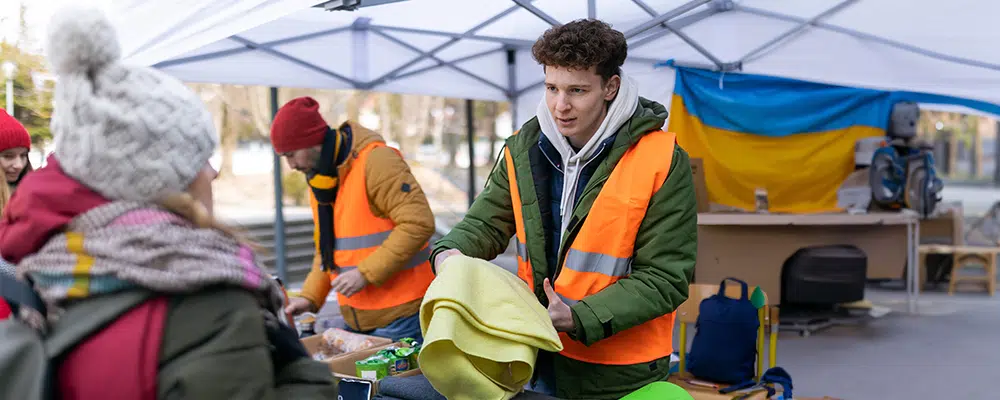
It starts first with a mindset, not just a heart for serving someone else. It’s a wholehearted belief that it matters, followed by a full-fledged intentionality to act. Some of the considerations may be an awareness of others, like looking for specific moments in the day to check in with others to see how they’re doing and ask if they need anything. It’s actively seeking ways and means to help people do what they do. It’s the cultivation of an others-first mentality.
Thinking it is one thing, doing it is another. The second aspect represents the hands and feet, or the action of living it out. Considerations for this can be seeing someone who needs some help, support, or a specific “helping hand” and then providing it. It’s delivering whatever is required or requested. I found it is best served without a need for reciprocity or “this for that” reward or validation. Serving is simply the right thing to do, and that’s enough.
I have also found importance and purpose in the third part, which is the follow-up. To check back in and see how it’s going. This demonstrates true and authentic concern, dedication, and even empathy. To be fair, not all situations flow into a follow up opportunity. Sometimes, it was a moment that just happened. I contend that if you are able and it makes sense, re-engage the other person and see how things worked out. Show them that the encouragement and support were genuine by celebrating what they did and how they did it.
Where do I apply it?

Two professional perspectives immediately come to mind. One is leadership, specifically servant leadership, where a leader prioritizes the growth, development, well-being, and empowerment of the team they represent. It is a commitment and stewardship of putting others first and ensuring the needs of others, as best captured in the book title by Simon Sinek, Leaders Eat Last. Ultimately, it is a belief that the success of the leader is intrinsically tied to the success of those who they lead, so put them first.
Another is serving one another within a team dynamic. Call it peer-to-peer or cohort service. This represents a side-by-side mentality, where teams are not only in “this” together but are naturally better together when they serve one another. They provide aid, collaboration, and encouragement…from one team member to another where all within the group can be and are typically unified in a mission to do something specific. Like-minded people are unified in purpose and help one another get it done.
Every day allows us to focus on and give of ourselves for the benefit of someone else. These include things like opening the door, lending a helping hand, or donating time and treasure to another person, family, or community. Whether it’s the ear that listens, a shoulder to cry on, or arms that can carry a load, we have a choice in how we are present in the lives of the people around us. So, which choices will you make today?
Muhammad Ali said it best…” Service to others is the rent you pay for your room here on earth.”
I challenge you in how you see and experience service in answering the questions below.
Questions to take away and consider:
- In what way do you define service or serving others?
- Consider How is service or serving others present in your professional and personal life?
- What are some ways you have seen others being served?
- Why would someone not have a mindset for service or to serve the people around them?
- Reflect on the real motives you have when serving others?
- How would you describe the best kind of service?
- What is a way you can serve someone else today?
Want to learn more perspectives about growth and leadership? Visit our podcast or visit one of our locations.

Aug 1, 2024
Growth is an Equation
We have explored that growth is something we believe to be important and manifests out of experience. It can come unexpectedly and in moments where we lack control. Growth can also be a deliberate process, even to the extent that it becomes an equation.
Mass + Willingness + Action + Follow Up = Growth
“I can accept failure, everyone fails at something. But I can’t accept not trying.” – Michael Jordan
For all intents and purposes, on any given day, we see things occur and hear things said. In the moment between occurrence and response, we consider our choices. We contemplate some change; call it a thought. Maybe just a feeling that something needs to change, start, stop, or improve. Then, we engage in a series of responses.
For context, let’s say, I was perusing my new hire orientation documentation as I began my job at Russell Cellular. I read the RC Brand Foundation of “Care for Every Person”, and I realized, “That’s me. That’s one of my values. I relate to that type of expression.” That particular connection stimulates how I see my job as having a specific purpose. I begin thinking about my daily tasks, to-do lists, and aspects of my day where I interact with others. An idea forms in my mind as to how I might live this out.
Mass
The first of these is crafting the idea into something doable. It originates as an amorphous or abstract consideration – lacking shape, focus, or structure. How can I actually “care” for every person? Maybe, caring for every person is not just an outlook but more a certain behavior I can bring into my day. I begin to add a personal responsibility to be caring within my job responsibility. Then, with a deeper consideration, the how becomes more concrete with clarity, form, and meaning. Maybe then, it’s finding something specific to appreciate in every situation and with every person and acknowledging it and them. That’s mass.
Willingness

Willingness is a big tenet for me. It is part of my belief in the WHO factor; to authentically be ‘who’ you are…willing, honest, and open. The challenge is we can say we’re willing – wholeheartedly believing in something or that something needs to change – and let it only be something we say to ourselves and others. This is about committing. So, if “care for every person” is calling out specific things I appreciate, I need to commit to doing this every time I can in all possible interactions like face-to-face chats, calls, meetings, IMs, and emails! Willingness is only as good as the action that follows.
Action
A commitment must become action. Johann Wolfgang von Goethe, a German writer and philosophical thought leader from the late 18th century, is known for saying, “Knowing is not enough; we must apply. Willing is not enough; we must do.” Or what about from the Book of James, “Faith without works is dead”? The point is, that growth comes in the engagement of behavior. Specifically, when we’re with a team member or customer, caring for them. Serving them and appreciating them in real-time. Thinking becomes doing, and doing becomes consistent, ongoing behavior. It becomes sticky.
Follow Up

Nothing says “sticky behavior” more than doing what we planned to do, assessing and reflecting on the outcome, ‘tweaking’ if needed, and then doing it over and over again. I remember years ago finding out that some seventy percent of all initiatives fail or fall short of being fully realized because of poor or lack of follow-up and follow-through. While I am uncertain whether that number has changed, I am still certain it tops the list. Therefore, if caring for every person is important…if it truly matters…then even with varying degrees of success and failure, we keep doing it. We keep caring and keep growing.
To be fair, this equation is a natural, organic requirement for growth. I believe if we lack in any one of these elements…if we ignore one or more or apply half-measures…our growth may very well lack in desired impact, influence, and outcome. As John Maxwell summed up, “Change is inevitable, Growth is optional.” So, choose growth and see what happens next.
How you define growth may very well be found in the answers below.
Questions to take away and consider:
- How do you intentionally create growth in your professional and personal life?
- What things do you ensure are in place for effective growth?
- What things keep you or have kept you from growing forward?
- If you were to schedule some type of consistent growth activity, what would it be, why would it be, and when or how often would it be?
- Name a thing or two you identify as “behavior(s) that stuck” in your growth journey. And why?
Want to learn more perspectives about growth and leadership? Visit our podcast or visit one of our locations.

Jul 1, 2024
I remember one of my first days. Picture it: my debut as a management consultant in the heart of Washington, DC. The room buzzed with anticipation as fifty-plus industry leaders gathered on the first day of the two-day management development workshop. I was part of a two-consultant facilitation team, a senior consultant and newbie consultant. I was the latter and tasked to deliver the easiest chapter. It was a chapter on discipline. I stepped up front in the hotel conference room; suit pressed, support team in the back, notes and projector ready, all eyes of the audience on me.
I froze.
What seemed like an eternity was only about 15 seconds. All the practicing and getting ready seemed to vanish in an instant. I remember the senior consultant’s face. He wasn’t mad or upset. He just smiled and nodded. I quickly glanced away and caught a woman’s face at the front, and she seemed to signal with her expression, “You’ve got this.” And then, my words kicked in – slowly and awkwardly. As the next 15 seconds passed, I hit my stride.
That began my growth journey as a sales, management and leadership consultant. In a way, I learned as much as all the owners, managers and leaders in that one 30-minute chapter review. Since then, I have delivered thousands of workshops and speeches. One constant thread in all of them, I kept learning and I keep growing.
“To me, a leader is someone who holds her- or himself accountable for finding potential in people and processes.” – Brene Brown
Unveiling Growth: The Power of Intentional Growth

In our journey through both professional and personal realms, I’ve come to realize that intentional learning is akin to the air we breathe—essential for our growth and development. To constantly and consistently seek understanding through a variety of ongoing sources. To develop oneself in some type of growth routine. Maybe it’s a daily, weekly or monthly commitment to always be learning something. Maybe it’s plugging into resources like books, videos, websites, seminars, classes, etc. Striving to learn on purpose, for purpose.
Embracing Uncertainty: Moments of Intentional Learning

I have also found that growth can come out of very unexpected places. Maybe we didn’t plan for a thing to happen; it does, and we improvise and do the best we can. Take something as unforeseen as COVID. That season not only challenged the status quo and “normal” ways to do things, it also provoked adaptation and the “new normal” – writing new proverbial chapters on what to do as we go. I believe we can inevitably learn a great deal about who we are and who we are becoming in seasons of uncertainty, adversity and desperation. Let’s be real, there are some things that can only learned in disruption and hardship.
Regardless of the when or how in our inflection point, change is inevitable. Learning is our choice. And owning that choice becomes a stimulant for growth.
Navigating Change: Lessons in Intentional Growth

- Firstly, from day one to now, what have you learned about yourself?
- Secondly, what specific moments have contributed to your growth?
- Moreover, what have your successes and failures taught you?
- Additionally, what makes up your ongoing development routine?
- And finally, if you have a team, and I asked them to describe your mindset about growth, what would they say?
So, as you go through your own journey, consider the milestones that have shaped you, the lessons learned from both success and failure. While change may be inevitable, it is our commitment to learning that propels us forward on the path of continuous improvement.
Want to learn more perspectives about growth and leadership? Visit our podcast or visit one of our locations.