

Seeing Loved Ones Is Easier Than Ever
Remember when staying in touch meant waiting for a family reunion or holiday gathering to reunite with blood kin and best mates? Or having to wait endless days for a handwritten letter – or paying long-distance phone charges by the minute?
Today, your smartphone lets you see and talk with family and friends almost instantly, whether they’re across town or across the country, with brilliant clarity on reputable 5G wireless carriers like Verizon.
For many a far-flung family member and international chum, video calling has become the most valuable of all their smartphone features. Chatting with your kids in real time or checking in with dear friends face-to-face can make the miles between us seem irrelevant.
If you’ve never made a video call before, don’t worry. The process is easier than you might think – and many times, it’s a more connected and intimate way of sharing a moment.
Note: A whole cadre of friendly experts are at your beck and call – from the Russell Cellular website, by phone at 1-800-221-4408, or at your nearest location – waiting eagerly and focused on helping you find the right solutions personally!
Before You Begin
A few quick checks can help ensure a smooth call:
- Connect to Wi-Fi if available
- Make sure your battery has plenty of charge
- Clean the front-facing camera if needed
- Find a comfortable, well-lit location
- Pro-Tip: Scan your environment. Flip the viewfinder before calling to see what should & shouldn’t be on screen with you, which your conversation partner will definitely see!
Once that’s done, you’re ready to go.
How to Make a Video Call on Newer Apple iPhones
Using FaceTime
Step 1: Open FaceTime 
- Tap the FaceTime app.
- Select New FaceTime.
Step 2: Choose a Contact
- Enter the person’s name or phone number.
- Select their contact information when it appears.
Step 3: Start the Call
- Tap FaceTime.
- Wait for the other person to answer.
Step 4: During the Call
You can easily:
- Mute your microphone
- Switch between front and rear cameras
- Use speakerphone
- End the call when finished
How to Make a Video Call on Newer Samsung Galaxy Smartphones
Using Google Meet
Step 1: Open Google Meet 
- Launch the Google Meet app.
- Sign in if prompted.
Step 2: Start a New Call
- Tap New.
- Select a contact or create a meeting link.
Step 3: Begin the Video Chat
- Tap Call.
- Wait for the recipient to connect.
Step 4: Use Call Controls
During the conversation, you can:
- Mute your microphone
- Turn your camera on or off
- Switch cameras
- End the call
Five Tips for Better Video Calls
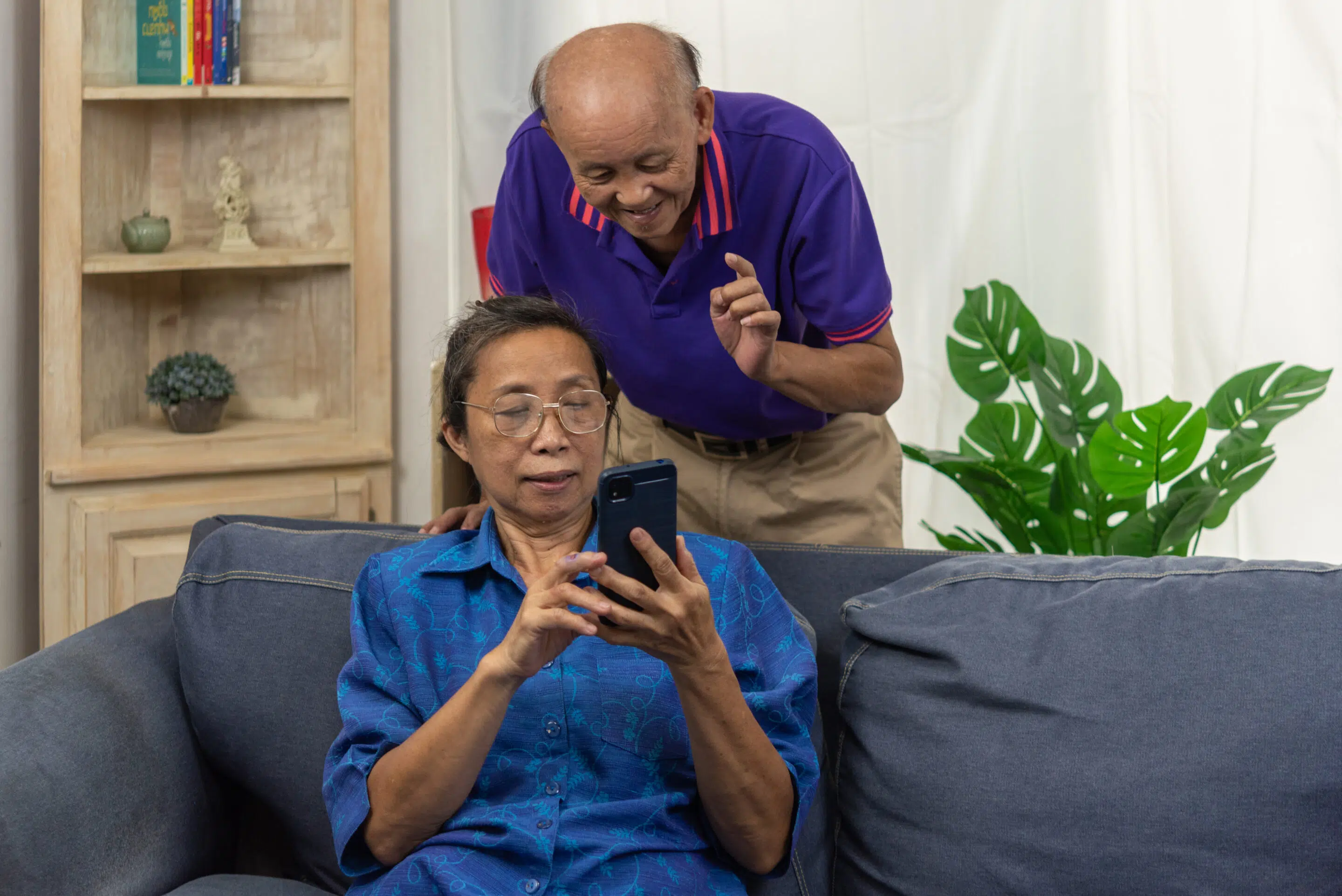
Sit Facing a Light Source
A window or lamp in front of you helps others see your face clearly.
If the light is behind you, your face may appear dark.
Hold the Phone at Eye Level
This creates a more natural angle and makes the conversation feel more personal.
Find a Quiet Room
Background noise can make it difficult to hear one another.
A quiet space leads to a much better experience.
Use Wi-Fi When Possible
Strong Wi-Fi often provides clearer video and audio.
Relax and Be Yourself
Many first-time users worry they’ll “do something wrong.”
The truth is that video calling works much like a regular phone call. The only difference is that you can see each other.
Troubleshooting Common Problems
The Other Person Can’t Hear Me
- Check that your microphone isn’t muted.
- Move to a quieter location.
My Picture Looks Dark

- Turn on a nearby lamp.
- Sit facing a window.
The Video Keeps Freezing
- Move closer to your Wi-Fi router.
- Close apps you’re not currently using.
I Can’t See the Other Person
- Verify they turned on their camera.
- Check your internet connection.
Make Your Video Calling Apps Easier to Access
If you regularly use FaceTime or Google Meet, place the app directly on your Home Screen. That way, you’ll spend less time searching and more time connecting with the people you care about. Many users place video calling apps near the Phone app for quick access.
Smartphone Video Calls are Warmer than Voice Calls, Easy to Make
One of the best things about modern smartphones is how easily they help us stay connected. Learning to make video calls may feel intimidating at first, but after a call or two, it quickly becomes second nature.
Whether you’re catching up with family, talking with friends, or attending an appointment from home, video calling is a skill well worth learning. And once you’ve mastered it, you’ll always be just a tap away from the people who matter most.
Care to know other fascinating and easy to use features of your smartphone? Call a professional at Russell Cellular at 1-800-221-4408 or visit one at your nearest location. You can also find Simple Smartphone Tech Tips on the RC blog.
#RussellCellular #TeamRC #TechTips #VideoChat #VideoConference #FaceTime #GoogleMeet #SmartphoneBasics #WirelessLifestyle #SamsungGalaxyVideoCalls #iPhoneVideoCalls