

Record a Voice Reminder or Live Meeting to Replay Later in just a few Clicks!
Fewer Things to Remember = More Peace of Mind, More Reliability & Accuracy
Have you ever left a doctor appointment and forgotten half of what was discussed? Or had a family member tell a great story that you wished you could save forever? Perhaps you’d benefit from voice reminders to jog your memory later – and make sure tasks are done and deadlines met.
That’s where your smartphone can be incredibly helpful.
Most modern smartphones include a built-in voice recording app that lets you quickly save reminders (“note to self”), interviews, family stories, meeting notes, academic lectures, and other important moments. The best part? You don’t need any special equipment or technical skills. (You should always obtain consent from hosts, presenters, and/or all parties before recording live conversations for legal and ethical reasons.)
Note: If you’re currently suffering “upgrade envy,” paying too much for wireless, or having tech issues with your tablet or phone, give the friendly experts at Russell Cellular a ring at 1-800-221-4408 or visit one at your nearest location immediately!
Let’s walk through how to record audio on an iPhone 14 or newer and a Samsung Galaxy S23 or newer. Most modern smartphones have similar capabilities and controls.
 Why Voice Recording Is So Useful
Many people think of voice recording as something only journalists or students use, but it can be helpful for almost anyone.
You might use it to:
- Record reminders for yourself
- Capture family memories and stories
- Save important information from meetings
- Remember instructions from appointments
- Keep notes when typing isn’t convenient
Once you start using it, you’ll probably wonder how you ever managed without it.
How to Record Audio on iPhone 14 and Newer 
Step 1: Open the Voice Memos App
- Find and tap Voice Memos.
- If you don’t see it, swipe down from the middle of your Home Screen and type “Voice Memos” in the search bar.
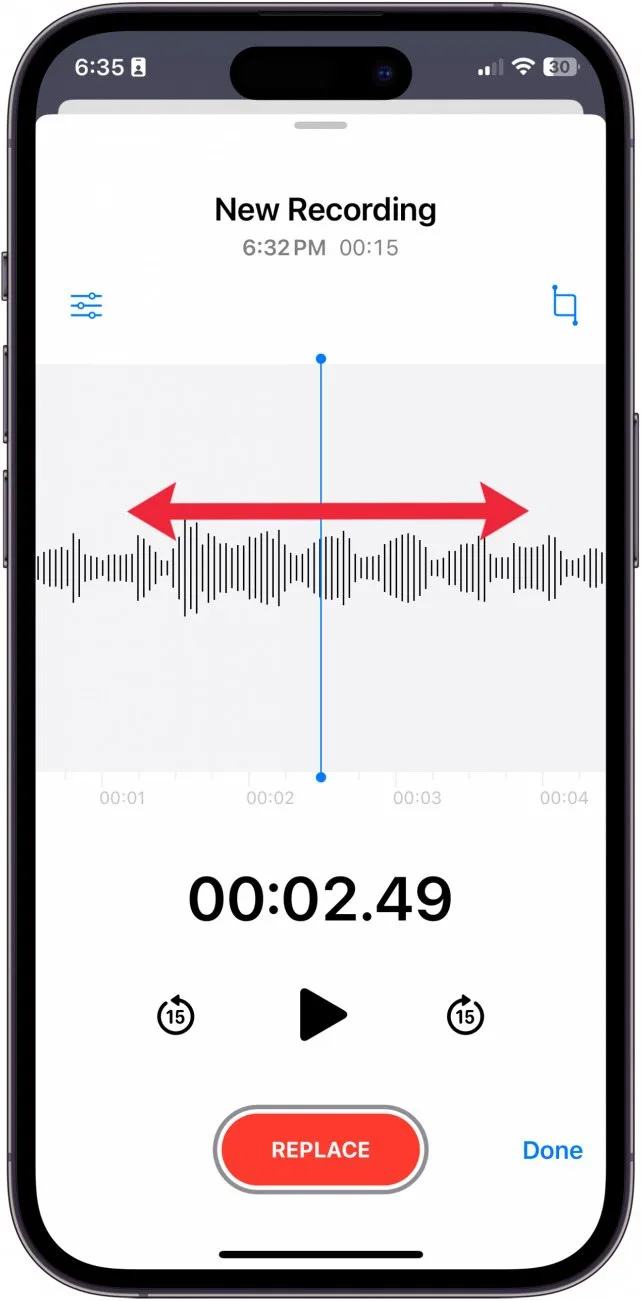
Step 2: Start Recording
- Tap the large red Record button.
- Begin speaking normally.
- You’ll see a timer showing that your recording is in progress.
Step 3: Pause and Resume if Needed
- Tap Pause if you need to stop briefly.
- Tap Resume to continue recording.
Step 4: Finish Recording
- Tap Stop when you’re done.
- Your recording automatically saves with a default file name containing the date it was made.
Step 5: Play It Back
- Tap the recording in the list.
- Press Play to listen.
- Adjust the volume as needed.
Make “Voice Memos” Easy to Find
If you plan to use Voice Memos frequently, consider placing it somewhere convenient on your Home Screen.
To Move Voice Memos on iPhone:
- Locate the Voice Memos app.
- Press and hold the app icon.
- Tap Edit Home Screen or drag it directly to the Home Screen.
- If applicable, tap Done in the upper-right corner.
Many people place it in the bottom row of icons so it’s always within easy reach.
Bonus Tip
You can also add Voice Memos to your iPhone Dock (the row of apps at the bottom of the screen) so it’s available on every Home Screen page.
 How to Record Audio on Samsung Galaxy S23 and Newer
Step 1: Open Voice Recorder
- Swipe up from the Home Screen to open Apps.
- Open Voice Recorder.
- If you don’t see it, search for “Voice Recorder.”
Step 2: Start Recording
- Tap the Red Record button.
- Speak clearly into the phone.
- The timer will begin counting.
Step 3: Pause and Continue
- Tap Pause if necessary.
- Tap Resume when ready to continue.
Step 4: Save the Recording
- Tap Stop.
- Give your recording a name.
- Tap Save.
Step 5: Listen to Your Recording
- Open the saved file.
- Tap Play to review the recording.
Make “Voice Recorder” Easy to Access on Samsung Galaxy
If you frequently record notes or reminders, keeping Voice Recorder on the Home Screen can save time.
To Add Voice Recorder to the Home Screen:
- Swipe up to open Apps.
- Locate Voice Recorder.
- Press and hold the icon.
- Tap Add to Home or drag it directly to the Home Screen.
- Place it wherever it’s easiest to find.
Many users place it next to the Phone or Camera app for quick access.

A Few Recording Tips That Make a Big Difference
Before you press Record:
- Move to a quieter area whenever possible.
- Hold the phone within a few feet of the speaker.
- Speak naturally and clearly.
- Give recordings names you’ll recognize later.
- Back up important recordings to cloud storage.
You don’t need studio-quality audio. Most smartphone microphones do an excellent job for everyday recording.

Try it Now, Use it All the Time
Voice recording is one of the simplest but most useful features on any smartphone. Whether you’re saving family memories, keeping track of reminders, or recording important information, it’s a tool that’s worth learning to use. After recording a few voice notes, you’ll likely find yourself using the feature far more often than you expected.
Get the best advice, support, and deals at your nearest Russell Cellular store or by calling 1-800-221-4408 today!
For the record, yes, we do know – sound and recording technologies have advanced beyond this basic, near universal smartphone feature, be we make no apologies for covering the fundamentals first. Stay tuned for more Smartphone Tech Tips here!
#SmartphoneTips #iPhoneTips #SamsungGalaxy #VoiceRecording #VoiceMemos #DigitalSkills #MobileTechnology #EasyTech #TeamRC